
How to automate client onboarding as a solopreneur (without Zapier)
A simple onboarding system for one-person businesses: welcome email, intake form, client folder, kickoff call and CRM update, done by an AI agent from one sentence.
By Ijlal Ahmed · · Updated
Onboarding is where solo businesses quietly lose hours. A new client says yes, and then comes the same 45 minutes of admin every time: the welcome email, the intake form, the folder, the calendar invite, the CRM update and the “where do I send the files?” reply.
None of it is hard. It’s just repetitive, and it lands right when you want to be doing the actual work.
This guide shows a simple onboarding system you can hand to an AI agent, so it happens from one sentence instead of 45 minutes.
The five steps every onboarding needs
Strip onboarding back and there are only five jobs. Get these right and the client feels looked after from day one.
| Step | What the client sees | What it saves you |
|---|---|---|
| 1. Welcome email | A warm note that says exactly what happens next | Writing it from scratch every time |
| 2. Intake form | One short form instead of ten back-and-forth emails | Chasing details by email |
| 3. Client folder | A shared folder with a welcome pack inside | Building folders and copying templates |
| 4. Kickoff call | A booked call with a clear agenda | Calendar ping-pong |
| 5. CRM update | Nothing, but you never lose track of them | Forgetting to tag or move them |
Why the usual automation tools fall short
The standard advice is to wire this up in Zapier or Make: “when a payment comes in, create a folder, send email A, add a row to sheet B”.
That works if every client is identical. Most solo businesses don’t work like that. One client paid by invoice, another booked a call first, a third needs a different package. Every exception means another branch in the automation, and the day something changes, the whole thing breaks quietly.
An AI agent works differently. You describe the job in plain words, and it reads the situation for each client: the email, the payment, the form answers. Then it does the steps in your own apps.
How to automate onboarding with Silk
Silk is a desktop AI agent for Mac and Windows. It works on your computer, inside the apps and accounts you’re already logged in to. Here’s the setup.
1. Write your onboarding as one request
Start with what you’d tell a new assistant. For example:
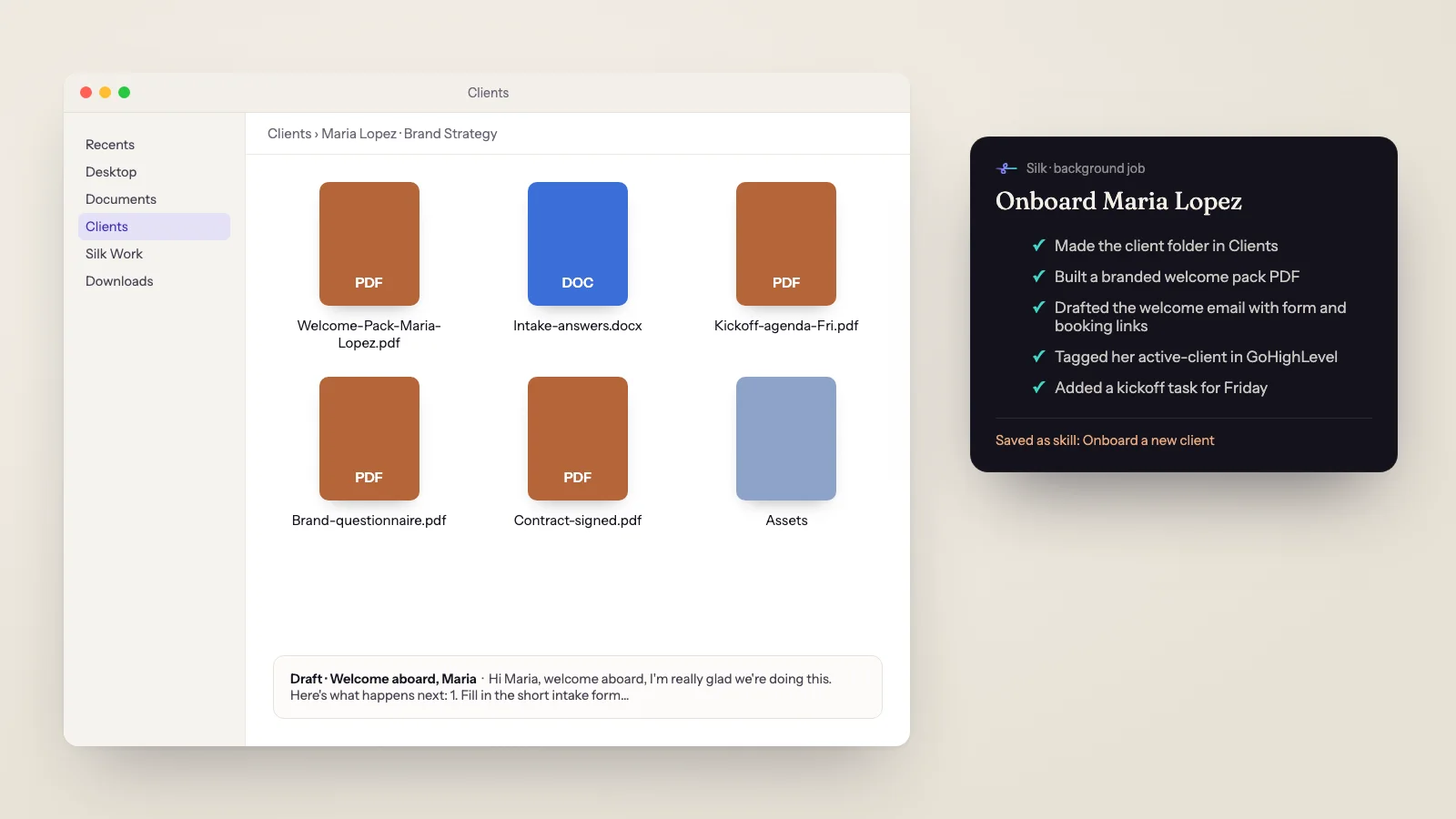
“New client: Maria Lopez, [email protected], Brand Strategy package. Make a client folder in Clients, put a welcome pack PDF in it with my branding, draft a welcome email with the intake form link and my Calendly link, tag her as active-client in GoHighLevel and add a kickoff task for Friday.”
Silk does the steps in order and shows a live card of what it’s doing. When it’s finished, the folder is on your computer, the email is waiting in drafts and the CRM is updated.
2. Connect the apps you use
Silk has ready-made connections for the usual onboarding tools: GoHighLevel, HubSpot, Notion, Calendly, Typeform, Stripe and Airtable among them. Pick one from the MCP list and sign in or paste a key. If you’ve never done it, this guide to MCP without coding walks through it.
For tools without a connection, like a client portal or an invoicing app, Silk uses the browser you’re already logged in to and clicks through it the same way you would.
3. Check the first one, then save it as a skill
Look over the first onboarding carefully: the email’s tone, the PDF, the CRM tag. Ask for changes in plain words (“make the email shorter and mention the 48-hour turnaround”).
When it’s right, save the run as a skill. From then on, “onboard Maria Lopez, Brand Strategy” is enough, and Silk follows the same steps with the new client’s details. You can also teach a skill by doing the job yourself once while Silk watches.
4. Let it watch for new clients
If new clients arrive by email or payment, set a schedule: “Every weekday at 9am, check Stripe and my inbox for new clients since yesterday and onboard each one. Leave the emails as drafts.”
Schedules run on your computer, so they fire while it’s on and Silk is running. Turn on Start at login so they survive a restart. You can also send the request from your phone over Telegram the moment someone says yes.
A welcome email template you can steal
Silk will write a fresh one each time, but this is a good shape to give it:
Hi Maria,
Welcome aboard, I’m really glad we’re doing this. Here’s what happens next:
- Fill in the short intake form (about 10 minutes): [link]
- Pick a time for our kickoff call this week: [link]
- Your shared folder is here, with a welcome pack inside: [link]
Once the form is in, I’ll start on the first draft. Any questions, just reply to this email.
Keep it short. A clear next step beats a long brochure.
Mistakes to avoid
- Automating before you’ve written it down. Do one onboarding by hand with Silk first. The skill is only as good as the run you save.
- Sending without checking. Start with drafts. Switch to sending once you’ve read five in a row and changed nothing.
- Too many tools. If the client gets a form, a portal, a Slack invite and a questionnaire, they won’t do any of them. One form, one folder, one call.
- Forgetting the CRM. The step no client sees is the one that stops people slipping through the cracks.
Where to go next
- Turn the welcome pack into something clients keep: make a branded PDF with AI.
- Start every day with your new clients and calls in one place: the AI morning briefing.
- See what Silk is and how much it costs.
Questions
- What should a client onboarding process include?
- For a solo business, five things: a welcome email that says what happens next, an intake form or questionnaire, a folder for the client's files, a booked kickoff call with an agenda, and the client marked as active in your CRM or project tracker. Everything else is optional.
- Can I automate client onboarding without Zapier or Make?
- Yes. Zapier and Make are good when every step is the same every time. An AI agent like Silk is better when the details change per client, because you describe the job in plain words and it works in your own apps and browser, with nothing to wire together first.
- How long does it take to set up?
- About as long as onboarding one client. You do the first one with Silk, check the result, and save that run as a skill. Every client after that starts from one sentence.
- Will the AI send emails to my clients without asking?
- Only if you tell it to. A good starting rule is "draft the welcome email and leave it for me to send". Once you trust the drafts, let it send them.
- Which apps does this work with?
- Any app you can use on your computer. Silk has ready-made connections for GoHighLevel, HubSpot, Notion, Calendly, Typeform, Stripe, Airtable and more, and for anything else it works in the browser you're already logged in to.
- Does onboarding run when my computer is off?
- No. Silk works on your computer, so a scheduled check for new clients runs while the computer is on and Silk is running. Turn on Start at login and leave the computer awake during working hours.