
An AI morning briefing that runs itself, every weekday
Set it up with one sentence. Every morning Silk reads your calendar and inbox on your own computer, drafts the replies that matter and has your day summarized before you sit down.
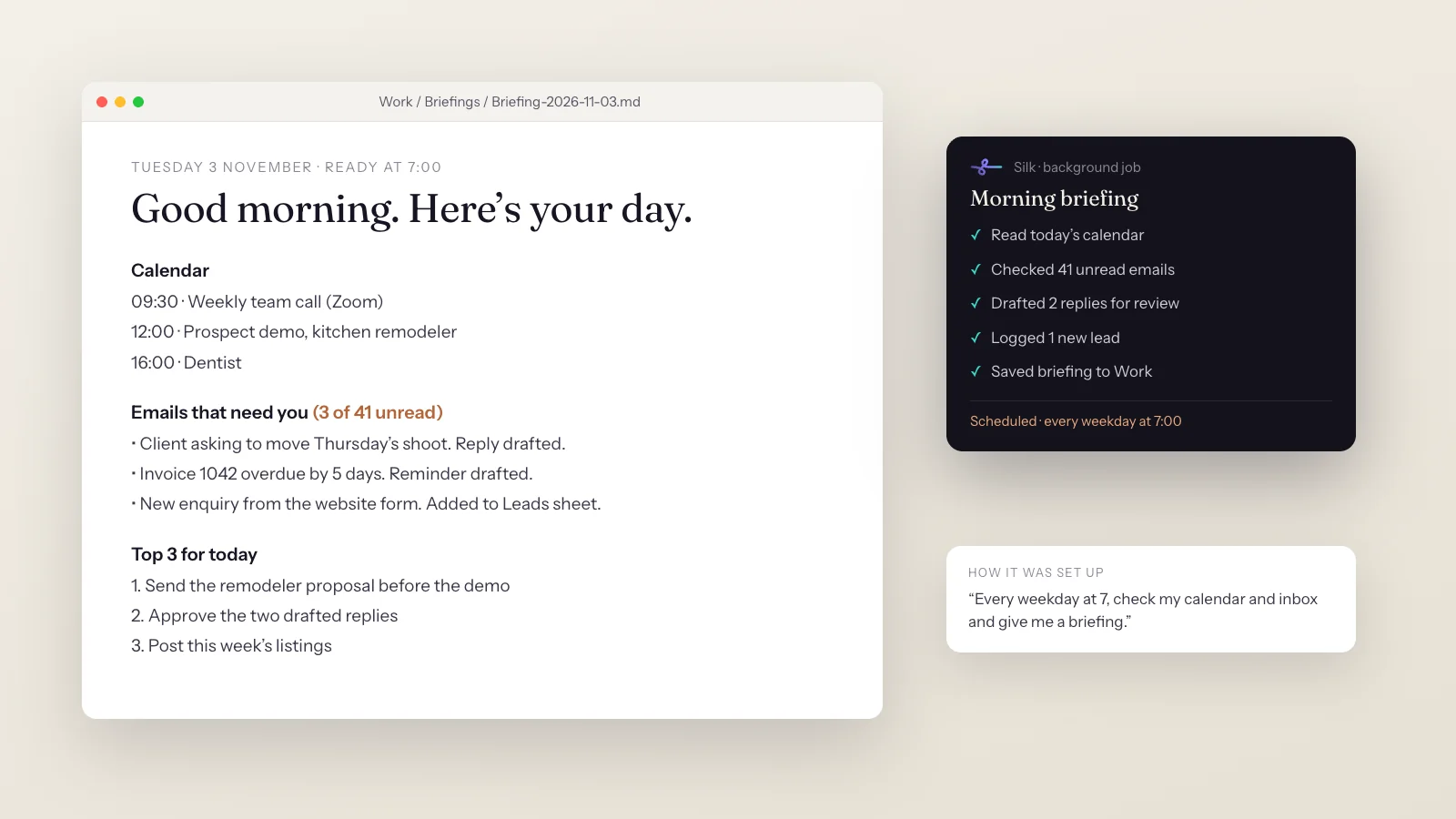
“every weekday at 7, check my calendar and inbox and give me a briefing”
- 01 Read today's calendar
- 02 Checked 41 unread emails
- 03 Picked out the 3 that need you
- 04 Drafted 2 replies for your review
- 05 Logged 1 new enquiry in the Leads sheet
- 06 Saved today's briefing to Work / Briefings
Briefing-2026-11-03.md waiting in your Work folder at 7:00, with replies drafted and nothing sent without you
Most AI tools wait for you to open them. A briefing is the opposite: the work is done before you’ve had coffee.
It’s the most common way Silk users put it on a schedule. In 60 days, Silk users set up 215 recurring jobs that ran 2,436 times, and email tasks grew 3.2x in the last 30 days. 91% of those schedules were set up just by asking.
What you get
- Today’s calendar, with anything that clashes or needs prep flagged.
- Only the emails that need you, pulled out of everything that came in overnight.
- Replies drafted and waiting for your OK, not sent behind your back.
- New leads logged, for example website enquiries added to your Leads sheet.
- Your top three for the day, based on deadlines, meetings and what’s overdue.
- A dated note saved to your Work folder, and on your phone if you want.
How it works, step by step
- Ask once. Say or type: “every weekday at 7, check my calendar and inbox and give me a briefing.” Add anything you care about, like “flag overdue invoices.”
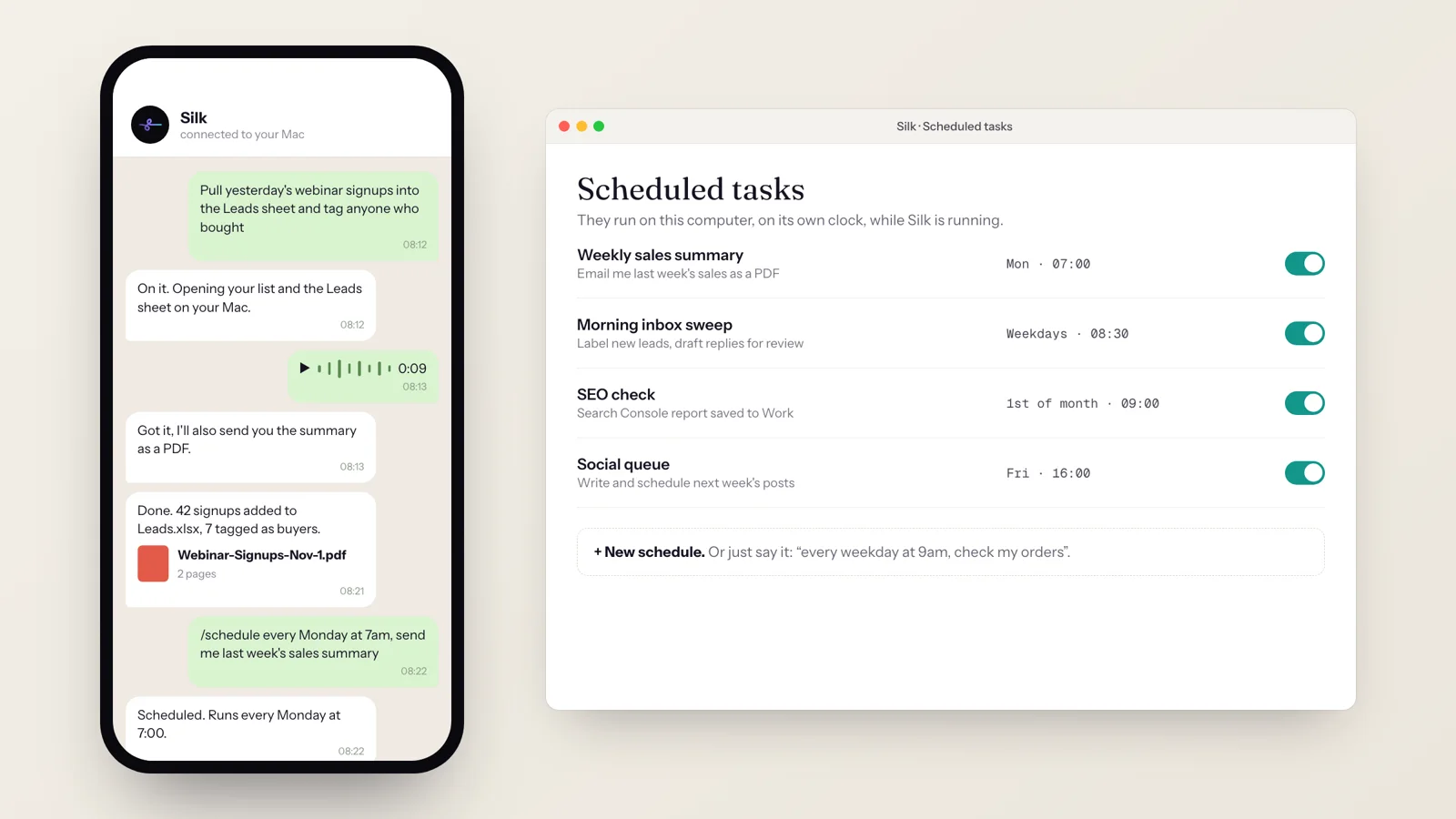
- Silk creates the schedule and shows it in Scheduled tasks. You can pause it or change the time any time, also just by asking.
- At 7:00 it runs in the background on your computer, in the accounts you’re already logged in to.
- It reads, sorts and drafts. Anything that needs a decision is drafted and left for you.
- It saves the briefing and tells you it’s ready.
Versions people actually run
- The front desk. “Every morning, sort my notifications and inbox, draft replies for anything from a client, and give me a checklist.”
- The calendar merger. “At 2 PM every day, check all six of my Google accounts and copy tomorrow’s Zoom calls onto my main calendar.”
- The evening recap. “Every night at 9, write a short ‘what I got done today’ note, dated, in my Work folder.”
- The sales pulse. “Every Monday at 7, email me last week’s sales as a PDF.”
Tips
New to Silk? Read what Silk is, or see 10 ways people use Silk.
Questions
- How do I set up an AI morning briefing?
- Ask Silk in plain words, for example "every weekday at 7, check my calendar and inbox and give me a briefing." Silk creates the schedule for you. 91% of Silk schedules are set up exactly like that, with no settings screen.
- Which email and calendar apps does it work with?
- Silk works on your own computer, so it can use what you already have open: Gmail and Google Calendar in your browser, Outlook, Apple Mail and Calendar, or Gmail and Google Calendar connected once in Silk's connected apps. It can even cover several accounts at once.
- Will Silk send emails without asking me?
- Only if you tell it to. The usual setup is for Silk to draft replies and leave them for you to approve. You decide in plain words what it may send on its own.
- Does my computer need to be on?
- Yes. Schedules run on your computer while Silk is running. Turn on Start at login and leave the computer awake, or pick a time when you know it will be on. A desktop or a Mac mini that stays on works well.
- Can I get the briefing on my phone?
- Yes. Pair Silk with Telegram and ask it to send the briefing there as well as saving it to your folder.
- Can it do an evening recap too?
- Yes. A popular pairing is a morning briefing and a nightly "what you got done today" note saved to your work folder. Just ask for both.