
How to rewrite Shopify product descriptions in bulk with AI
Shopify Magic does one product at a time. Here's how to rewrite a whole catalog with AI: a style brief, a backup, a test batch, a review step and a reusable skill.
By Ijlal Ahmed · · Updated
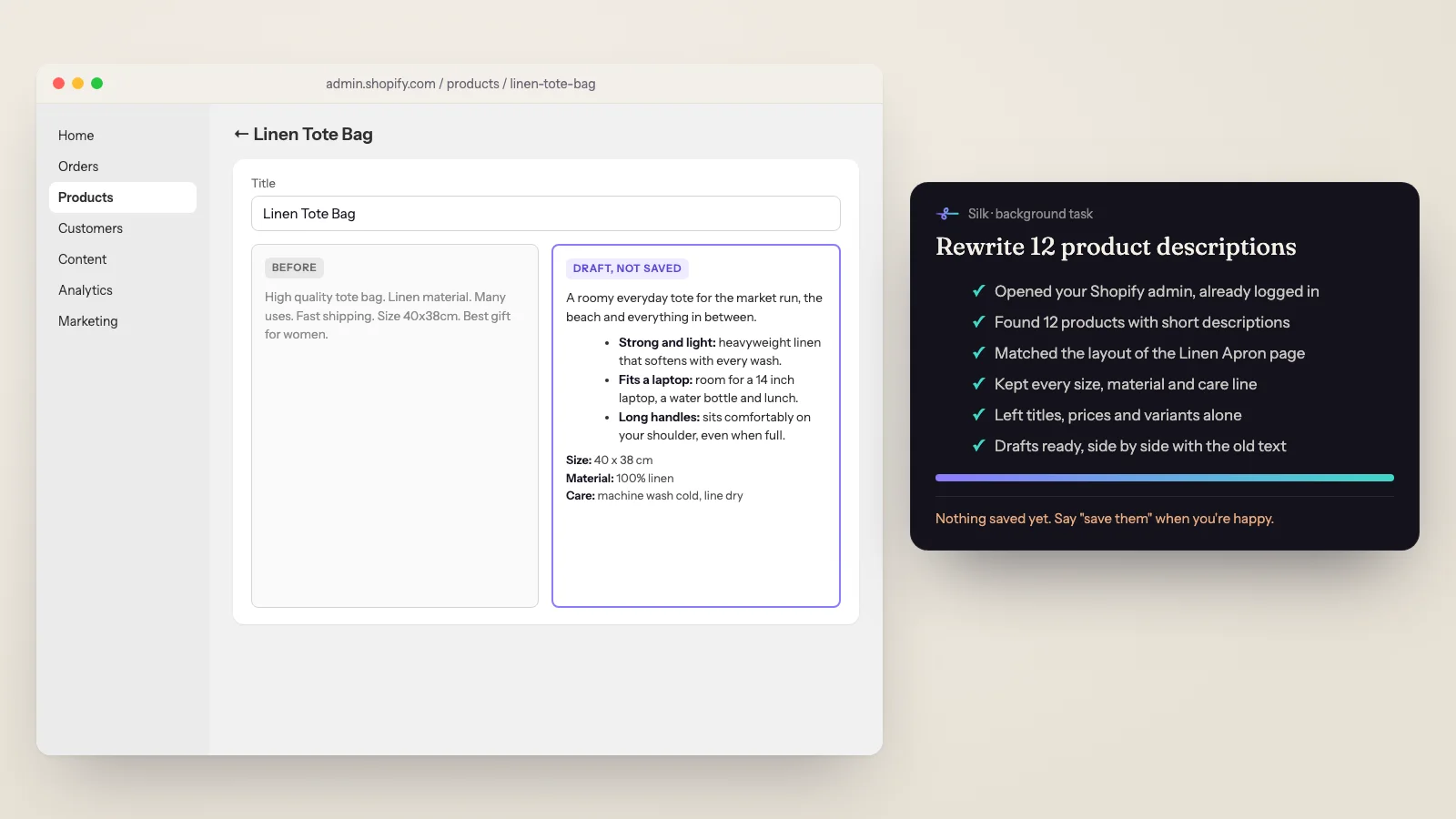
Most Shopify stores have the same problem in the same place. The first ten products got proper descriptions. The next two hundred got the supplier’s text, a one-line placeholder, or nothing at all.
Rewriting them by hand is a week of work. Shopify’s own AI writer, Shopify Magic, only does one product at a time inside the product editor. And the guides that rank for this search mostly want you to install their app.
This guide shows a simpler way that works for a one-person store: write one great description, turn it into a brief, and have an AI agent do the rest of the catalog in reviewed batches.
Your three options, honestly
| Method | Good for | Watch out for |
|---|---|---|
| Shopify Magic | A handful of products | One at a time, no catalog mode |
| CSV export and re-import | Hundreds of products | A blank column wipes live values, and an import can’t be cancelled once started |
| Bulk-edit or AI description apps | Rule-based changes, big catalogs | Another monthly app, often with per-product credits |
| An AI agent in your admin | Rewrites that need judgment | Needs a clear brief and a review step |
Shopify’s bulk editor can show a Description column, but it’s built for quick edits, not for writing. For rewriting in bulk, the real choice is between editing a CSV and having something work through the products for you.
What the ranking guides skip
Most guides stop at “export, rewrite, import”. The steps that decide whether the result is any good are the ones before and after:
- A style brief. Without one, AI copy comes out generic and every product sounds the same.
- Keeping the facts. Sizes, materials, care instructions and size charts must survive the rewrite word for word.
- A test batch. Ten products first, checked on the live store, before you touch the rest.
- A backup. Shopify keeps no history of CSV imports, so your own export is the only undo.
Step 1: Write one description you love
Pick your best-selling product and get its description right yourself. A layout that works for most stores:
- One opening line on who it’s for and the problem it solves.
- Three to five short benefits, each with a bold lead-in.
- The specs, kept exactly as they were.
- Care, sizing or shipping notes.
This one page becomes the pattern for every other product. It’s far easier for an AI to copy a real example than to follow a list of rules.
Step 2: Turn it into a short brief
Write five or six lines you’d give a new copywriter:
“Match the layout and tone of the Linen Apron page. Under 150 words. Plain English, no hype words like ‘elevate’ or ‘game-changer’. Keep every measurement, material and care line exactly as it is. Don’t touch the title, price, variants, images or tags.”
The last line matters most. It stops the rewrite drifting into things you didn’t ask to change.
Step 3: Back up your catalog
In Shopify admin, go to Products, click Export and save the CSV of all products. The description lives in the Body (HTML) column. Keep that file somewhere safe. If a batch goes wrong, you can import the old text back.
Step 4: Let Silk do a test batch
Silk is a desktop AI agent for Mac and Windows. It works in the browser you’re already logged in to, so it opens your Shopify admin as you, with no app to install and no API key to set up. If Shopify asks for a login code, Silk stops and hands you the window to sign in yourself.
Give it the first job:
“Open my Shopify admin. Find the 10 products with the shortest descriptions. Rewrite each one to match the Linen Apron page, following my brief. Show me the drafts side by side with the old text before saving anything.”
Silk works through the product list and shows a live card of what it’s doing. When it’s done, you get the old and new text for each product to read through.
When you open your Shopify admin, Silk can also offer this job itself as a suggestion card: it drafts better descriptions for up to five products with short or missing ones, and saves nothing to the store.
Read the drafts properly. Check every spec against the original. Ask for changes in plain words: “shorter”, “less salesy”, “mention it’s machine washable higher up”.
Step 5: Save the batch and check the live pages
Once the drafts are right, tell Silk to save them. Then open three or four of the products on your live store, on your phone as well as your computer. Look for broken formatting, missing size charts and anything that reads oddly.
If you’d rather not have anything edited in the admin directly, ask Silk to write the new text into a copy of your exported CSV instead. You import it yourself and stay in control of the button.
Step 6: Save it as a skill and run the rest
When a batch comes out right, save the run as a skill. From then on, “rewrite the next 25 product descriptions” is enough, and Silk follows the same brief and the same review step every time. You can also record a skill by doing one product yourself while Silk watches.
Work through the rest of the catalog in batches of 20 to 50. Leave a few days between big batches and keep an eye on your search traffic, so you know the new copy is helping before you change everything.
This is one of the most common jobs people give Silk. In our anonymized usage data, Silk users ran 136 ecommerce tasks in two months, averaging about 23 minutes each, the longest jobs of any kind. One habit stood out: people record the product-page routine once and replay it for every new product. Read more in how people actually use Silk.
While you’re in there
The same run can fix the pieces most stores forget:
- SEO titles and meta descriptions for each product, the text that shows in Google.
- Image alt text, described from the photo.
- Duplicate supplier copy, so you’re not sharing word-for-word text with every other store selling the same item.
- Matching layouts: “make this product page look like that one”, across the catalog.
The same approach works on any site you edit in a browser. See how it handles SEO fixes on a live website.
Honest limits
- Check facts every time. AI can drift on numbers. Your brief should say “keep specs exactly”, and you should still spot-check.
- Batches take a while. Silk works through the admin like a person would, so a big catalog is a job to leave running, not a ten-second click. Silk keeps the computer awake while a task runs.
- Schedules need your computer on. If you set a weekly “describe new products” job, it only runs while the computer is on and Silk is running.
- Connected apps are for members. Silk’s 1,500+ Connected apps are included for Smooth Operators community members. For this job you don’t need them: your logged-in browser is enough.
Common mistakes
- Skipping the backup. It takes one minute and it’s the only undo you have.
- No example. “Make it better” gets generic copy. “Make it like this page” gets your voice.
- Doing all 500 at once. A mistake in the brief becomes 500 mistakes.
- Letting it touch prices or variants. Say “description only” in every brief.
Where to go next
- Turn your best product into a lead magnet: make a branded PDF with AI.
- Post your new products for you: auto-post to social media.
- See what Silk is and how much it costs: 9 US dollars a month, first day free.
Questions
- Can Shopify Magic rewrite product descriptions in bulk?
- No. Shopify Magic works inside one product editor at a time and isn't part of the bulk editor. For a whole catalog you need either a CSV export and re-import, a bulk-edit app, or an AI agent that works through your products for you.
- What's the safest way to bulk edit Shopify descriptions?
- Export your products to CSV first so you have a backup, rewrite a small test batch, check it on the live store, then do the rest in batches of 20 to 50. Shopify CSV imports can't be cancelled once they start and there's no import history, so the backup is your undo button.
- Will AI-written descriptions hurt my SEO?
- Not if they're specific. What hurts is copy that's thin or the same as every other store selling the product, which is common with supplier text. A rewrite that keeps your real specs, sizes and materials and adds who the product is for usually helps. Change a batch, then watch your rankings before doing the rest.
- Do I need a Shopify app to do this?
- No. Silk works in your Shopify admin in the browser you're already logged in to, the same way you would, so there's nothing to install in the store and no API key to create. If you prefer, it can also edit an exported CSV on your computer for you to import.
- Will Silk change my prices or inventory?
- Only if you ask it to. Tell it to change the description and nothing else, and it leaves prices, variants, inventory and images alone. Start with drafts for review, and only let it save once you're happy with a batch.
- How much does it cost?
- Silk is 9 US dollars a month, with the first day free. It runs on your ChatGPT or Claude plan, or any OpenRouter model, so there are no per-product credits like most description apps charge.