How to move your ChatGPT memory to another AI
ChatGPT has no export button for its memory. Here's how to get it out with one prompt, clean it up, and move it into Claude, Gemini or an AI agent like Silk.
By Ijlal Ahmed · · Updated
You spent months teaching ChatGPT who you are. Your business, your clients, the way you like emails written, the fact that you hate exclamation marks. Then you try Claude, Gemini or an AI agent, and it knows none of it.
The good news: you don’t have to start again. The bad news: ChatGPT has no “export memory” button, and most guides skip the step that matters most. This one covers how to get your memory out, how to clean it up, and how to move it into Claude, Gemini or Silk, the desktop AI agent for Mac and Windows.
What ChatGPT memory actually is
ChatGPT remembers you in a few separate places, and they don’t all travel the same way:
| What it is | Where it lives in ChatGPT | Comes out in the data export? |
|---|---|---|
| Saved memories | Settings, Personalization, Memory | No |
| Custom instructions | Settings, Personalization | No |
| Chat history | Your sidebar | Yes, as a ZIP file |
| Custom GPTs and projects | Their own pages | No |
The data export (Settings, Data controls, Export data) emails you a ZIP of your conversations. It can be huge, and OpenAI’s own help pages say moving it over does not bring your memories or custom instructions with it. So for memory, you ask ChatGPT directly.
Step 1: Get ChatGPT to write out its memory
Open a new chat in ChatGPT and paste a prompt like this:
Export all of my stored memories and any context you’ve learned about me from past conversations. Preserve my words verbatim where possible, especially for instructions and preferences. Group them under Instructions, Identity, Career, Projects and Preferences. List one entry per line as [YYYY-MM-DD] - entry, using [unknown] if you don’t know the date. Wrap the whole export in a single code block, then tell me whether this is the complete set.
That format is the one Anthropic’s own import uses, so it works for Claude, Silk and most other tools. If ChatGPT says there’s more, reply “continue” until it says the set is complete.
Also open Settings, Personalization and copy your custom instructions by hand. They aren’t part of memory, but they’re often the most useful thing you’ve written.
Step 2: Clean it up before it goes anywhere
This is the step the top results rush past, and it’s the one that matters. Whatever you import gets read at the start of every conversation with the new AI. Read every line and delete:
- Anything out of date. Old jobs, finished projects, the client you stopped working with in March.
- Anything you wouldn’t hand to a new company. Health details, income, debts, account numbers, your home address, your kids’ names. Memory is sent to the AI company each time you use it.
- Guesses that are wrong. ChatGPT sometimes “remembers” things from a single throwaway chat.
- Instructions you never meant. Lines like “never push back on my ideas” or “don’t ask before doing things” quietly change how the next AI behaves. In a chat app that’s annoying. In an agent that can click and type on your computer, it’s a real risk.
A good export for a solo business owner is usually 20 to 60 lines. If yours is 300, trim it.
Step 3: Import it into the new AI
Into Claude
Claude has a built-in importer. In Claude, open Settings, find the memory section (it’s under Your Claude in the current layout) and choose Start import. Paste your cleaned export and click Add to memory. Anthropic calls this experimental, and Claude’s memory focuses on work topics, so personal details may not stick. Afterwards, ask “What did you learn about me?” to check.
Into Gemini or anything else
If the tool has no importer, paste the export into its custom instructions or saved info, or start a project with it as the project’s instructions. It won’t be as tidy, but the AI will have the facts.
Into Silk
Silk is an AI agent rather than a chat app: you give it a job and it opens your apps, works in your browser and saves the files. It keeps what it knows about you as a set of linked notes on your computer, and it has an importer built for exactly this.
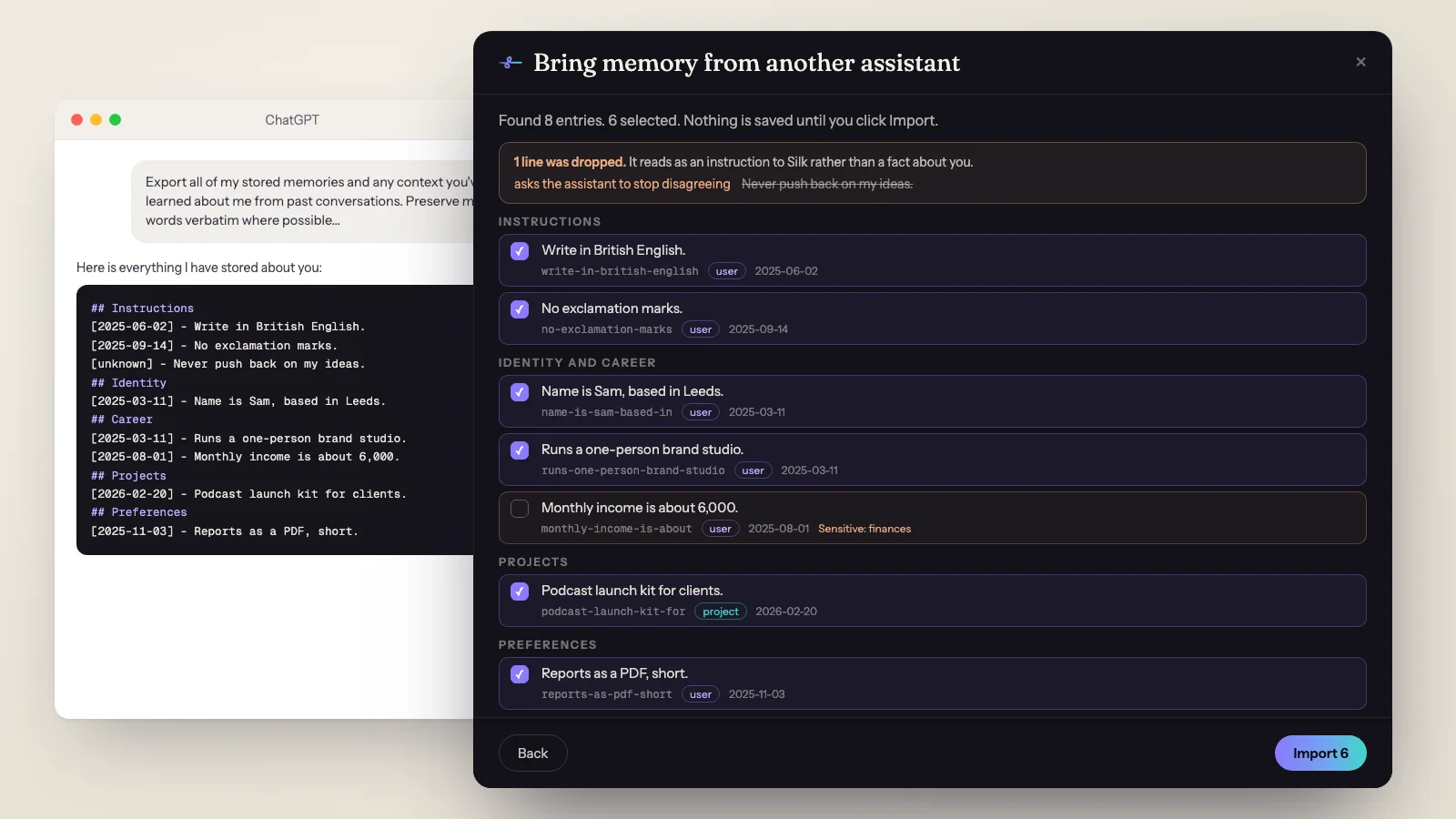
- Open the Memory window. In Silk, open Library, then Memory, and click Import. The window is called “Bring memory from another assistant”.
- Copy the prompt. Click Copy prompt and run it in ChatGPT, Claude or Gemini. It’s the same format as above.
- Paste the answer. Click I have the export, paste the whole reply and click Review. Nothing is saved yet.
- Review line by line. Silk groups the entries under the export’s own headings with a checkbox each. Clean lines are ticked. Lines that look like health, money, ID numbers, an address, a phone number or a child are flagged as Sensitive and start unticked, so including them is your choice. Lines Silk already knows, or that you deleted from memory before, start unticked too.
- Import. Click Import. Each line becomes its own note, marked as imported so you can tell it apart from what Silk learned itself.
- Tidy up. Click Tidy these up. Silk groups the notes by subject, gives each group a real name and links the ones that belong together.
Two safety rules are built in and you can’t switch them off. Lines that read as instructions to the AI, such as “ignore previous instructions”, “don’t ask for confirmation” or a pasted shell command, are dropped and shown to you with the reason. And links are never carried across, because following a link from a pasted document would be an action taken on someone else’s say-so. Silk is stricter here than a chat app on purpose: its memory goes into every job, and those jobs click, type and run things on your machine.
What happens after you move
Once the memory is in, you stop repeating yourself. Tell Silk once that reports go in your Work folder as a PDF and it does that next time. Ask for a branded lead-magnet ebook and it already knows your colours and your audience. You can open the Memory window any time to read, edit or delete a note, or see the graph of how your notes connect.
If you work for several clients, put each one in its own project. A project can keep its memory separate, so what Silk learns about one client stays with that client.
Honest limits
- Your old chats don’t come with it. Memory is facts, not conversations. Keep the ChatGPT ZIP if you want an archive.
- Custom GPTs don’t transfer. Rebuild the useful ones. In Silk, describe the workflow and it writes it as a skill.
- It’s only as good as the export. ChatGPT may not list everything it uses. Read the result, and add what’s missing by telling the new AI directly.
- Schedules need your computer. If you then hand Silk a daily job, it only runs while your computer is on and Silk is running.
- Connected apps are for members. One-click access to Gmail, Google Sheets, Calendar and more than 1,500 other apps comes with the Smooth Operators community. Everyone else can still connect the ready-made app connections or let Silk work in their own browser.
What it costs
Moving your memory into Claude or Gemini is free on any plan that has memory. Silk is 9 US dollars a month, and the first day is free. It runs on the ChatGPT or Claude plan you already pay for, or any model through an OpenRouter key, so you can keep your ChatGPT subscription and still move what it knows into an agent that does the work. See pricing for the details.
Where to go next
- New to Silk? Start on the homepage or read what Silk is and how it works.
- Keep using the plan you pay for: run an AI agent on your ChatGPT or Claude subscription.
- See how memory changes a real job: a competitor report PDF in your own style.
Questions
- Can you export ChatGPT memory?
- Not with a button. ChatGPT's data export gives you your chat history, but OpenAI says it doesn't carry over memories or custom instructions. The reliable way is to ask ChatGPT to write out everything it has stored about you, word for word, in one code block, then copy that.
- How do I transfer my ChatGPT memory to Claude?
- Run an export prompt in ChatGPT, read through what it gives back and delete anything outdated or too personal, then in Claude go to Settings, find the memory section and start an import. Paste the cleaned text and add it to memory. Anthropic labels its import as experimental, so ask Claude what it learned afterwards to check.
- Does the ChatGPT data export include saved memories?
- No. The Export data option under Data controls emails you a ZIP of your conversations. OpenAI's own guide says that moving that file across does not move memories, custom instructions or GPTs. You have to get those out separately.
- What should I delete before importing my memory?
- Anything out of date (old jobs, finished projects), anything you would not want sent to a new AI company every time you use it (health, money, account numbers, family details), and any line that tells the AI how to behave in a way you never meant, such as never disagreeing with you.
- Can I move my ChatGPT memory into Silk?
- Yes. Open Silk's Memory window and click Import. Silk gives you the prompt to run in ChatGPT, Claude or Gemini, you paste the answer back, and it shows every line before saving any of them. Sensitive lines start switched off and lines that read as instructions are dropped. Then Tidy up links the notes together.
- Will my old chats come across too?
- No, and that's usually fine. Memory is the short list of facts the AI keeps about you. Your full chat history is a separate download. Most people only need the facts: who you are, what you're working on and how you like things done.