How to automate GoHighLevel with AI, without Zapier
Connect an AI agent to GoHighLevel through its MCP server with one token, then hand it the CRM jobs workflows can't judge. Setup, safe scopes and honest limits.
By Ijlal Ahmed · · Updated
GoHighLevel already has workflows. So why would you want AI in there too?
Because workflows only do what you can draw as a flowchart. “When a form is filled, tag the contact and send email 1” is easy. “Look through yesterday’s leads, work out who’s actually a fit, and write each one a reply that mentions what they asked about” isn’t. That kind of job used to mean Zapier, a ChatGPT step, a few filters and a monthly bill that grows with every run.
There’s now a simpler way. GoHighLevel has an official MCP server, and an AI agent on your computer can use it to work inside your CRM directly. This guide shows how to set it up with one token, which jobs to hand over and where the limits are.
What changes when AI can use GoHighLevel directly
MCP stands for Model Context Protocol. It’s the shared standard AI apps use to plug into other software. (If it’s new to you, start with how to use MCP servers without coding.)
GoHighLevel’s MCP server doesn’t give the AI a short list of buttons. It gives it four tools: one to pick the sub-account, one to search for the right operation, one to read how it works and one to run it. Behind those sit more than 550 operations: contacts, tags, conversations, opportunities, calendars and bookings, forms and submissions, funnels and pages, and more.
| Zapier plus ChatGPT | Workflows | AI agent on GHL’s MCP | |
|---|---|---|---|
| Setup | A zap per job | Drag and drop per job | One token, then plain words |
| Handles judgment calls | Only inside one AI step | No | Yes |
| One-off jobs | Not worth building | Not worth building | Just ask |
| Cost grows with use | Per task | Mostly included | No per-task fee |
| Builds workflows | No | Yes | No |
That last row matters. Keep your workflows for the fixed, instant stuff, like the confirmation email the moment someone books. Use the AI for the work that needs reading and deciding.
What the ranking guides miss
Most of what ranks for this search falls into two camps. GoHighLevel’s own help pages show you how to connect Claude, ChatGPT or Cursor. Tool roundups list ten products with a price next to each. A few things are missing from both:
- Which jobs are actually worth handing over. A connection is not a use case.
- The token route. Some AI apps can’t use GoHighLevel’s sign-in flow, which is only open to apps GoHighLevel has approved. A Private Integration Token works with any app that lets you add a header.
- Scopes as your safety switch. The token only allows what you tick, so you decide up front what the AI can and can’t change.
- What it can’t do. No connector builds workflows for you. Plan around that.
Step 1: Create a Private Integration Token
In the GoHighLevel sub-account you want to automate:
- Open Settings, then Private Integrations.
- Create a new integration and give it a clear name, such as “Silk, Acme Dental”.
- Tick only the scopes the jobs need. For the examples below: Contacts, Conversations, Calendars, Forms and Opportunities. Leave out anything you’d rather do by hand.
- Copy the token. It starts with
pit-.
If you’re an agency and use an agency-level token instead, also note the sub-account’s Location ID, so the AI knows which client it’s working in.
Step 2: Connect it to Silk
Silk is a desktop AI agent for Mac and Windows. GoHighLevel is one of its ready-made MCP connections, so there’s nothing to install and no config file to edit.
- In Silk, go to Settings, then MCP, and pick GoHighLevel.
- Paste the token. Add the Location ID only if you used an agency-level token.
- Save. Silk connects to GoHighLevel’s newer MCP server, the one with more than 550 operations.
One connection covers one sub-account. Managing several clients? Add one connection per client and say which one in your request.
A quick note: Silk works with GoHighLevel through this connection, not by clicking around your GoHighLevel dashboard in a browser. GoHighLevel’s login codes don’t play well with automated browsers, and the MCP route is faster anyway.
Step 3: Hand it real jobs
Ask in plain words. Silk picks the right GoHighLevel operations on its own. Jobs that work well:
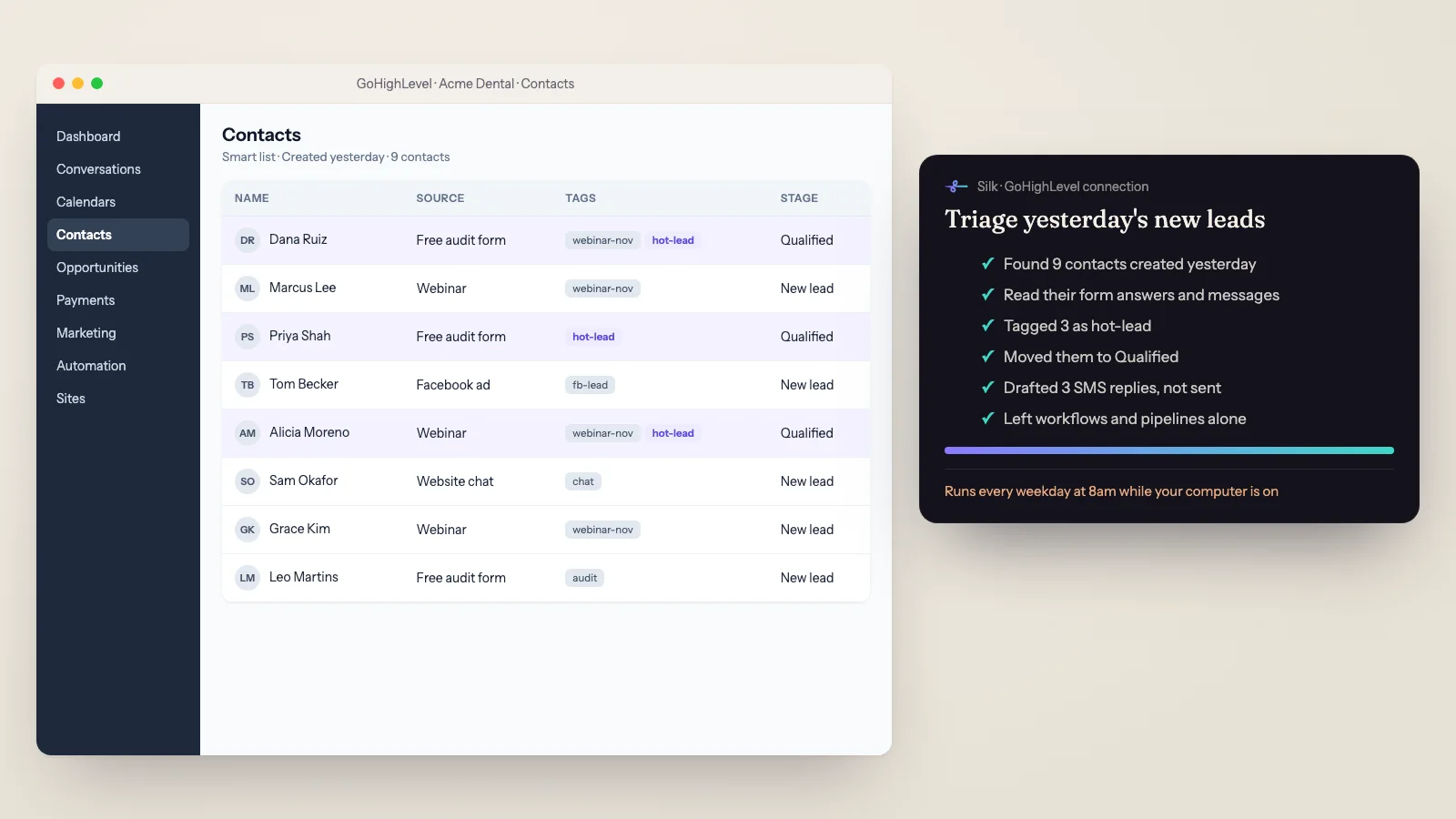
- Lead triage: “Look at every contact created since yesterday. Tag the ones who mention a budget over 2,000 as hot-lead and move them to the Qualified stage.”
- Reply drafts: “Read the SMS conversations with no reply from us in two days. Draft a reply for each one that answers what they asked. Don’t send anything.”
- Form follow-up: “Find this week’s submissions on the free audit form and add each person to the Audit Follow-up workflow.”
- Clean-up: “Find contacts with no email and no phone, and list them in a spreadsheet so I can decide what to delete.”
- Reports: “Give me this week’s bookings by calendar, the no-shows, and the deals that moved stage, as a one-page PDF.”
GoHighLevel is the most connected business app among Silk users: 15 installs have connected it, ahead of Notion (7) and Canva (6). Real jobs from their logs include checking a client’s SMS conversation for a reply and acting on it, and connecting a website enquiry form to the CRM. You can read more in how people actually use Silk.
Step 4: Put the repeat jobs on a schedule
Once a job works, make it routine:
“Every weekday at 8am, triage yesterday’s new leads in Acme Dental the same way and send me the summary.”
Silk creates the schedule for you. It’s the same idea as the AI morning briefing, pointed at your CRM. You can also save a job you like as a skill, so “do the lead triage” runs the same steps every time.
One honest limit: schedules run on your computer, only while it’s on and Silk is running. Turn on Start at login and leave the machine awake, or pick a time you know it’ll be on. If a reply has to go out at 3am, that’s still a job for a GoHighLevel workflow.
Tips that keep your CRM safe
- Drafts before sends. Have it draft replies for a week before you let it send anything.
- Read-only first. Start with reports. Add write scopes once you trust the results.
- Test on one contact. Before a bulk tag or a stage move, ask it to do one and check it in GoHighLevel.
- Say what not to touch. “Don’t change pipelines, workflows or custom fields” is one line and saves a lot of tidying up.
- One token per client. A mistake then stays inside one sub-account.
Silk also asks before anything it can’t undo, and you can stop it at any time.
What it costs
Silk is 9 US dollars a month, with the first day free (see pricing for the current price). It runs on the ChatGPT or Claude plan you already pay for, or any OpenRouter model, so there’s no per-task bill like Zapier’s. GoHighLevel’s MCP server comes with your GoHighLevel account.
If you’re in the Smooth Operators community, Silk’s Connected apps tab adds more than 1,500 other apps, like Gmail, Google Sheets and Calendar, so a job can start in your inbox and finish in your CRM.
Where to go next
- See a scheduled job end to end: the AI morning briefing.
- Post to your social pages on autopilot: auto-post to social media.
- Build the client side too: automate client onboarding as a solopreneur.
- New to Silk? Read what Silk is, or go straight to pricing.
Questions
- Can AI work inside GoHighLevel without Zapier?
- Yes. GoHighLevel has its own MCP server, a connector that lets an AI agent read and change your CRM directly. Once it's connected with a Private Integration Token, the AI can find contacts, add tags, read conversations, check bookings and move deals without any Zapier zap in between.
- What is the GoHighLevel MCP server?
- It's GoHighLevel's official connector for AI apps. Instead of a fixed list of actions, it gives the AI a way to search and run more than 550 operations across contacts, conversations, opportunities, calendars, forms, funnels and more, limited to the scopes you tick on your token.
- Can AI build GoHighLevel workflows for me?
- Not through the official connector. GoHighLevel's MCP server works on your data, not on the workflow builder, so you still build workflows by hand. The good news is that the AI can trigger the jobs workflows are bad at, and add contacts to the workflows you already have.
- Is it safe to give an AI access to my GoHighLevel account?
- Give it only what the job needs. The token's scopes decide what the AI can touch, so leave out anything you don't want changed. Start with read-only jobs like reports, ask for drafts instead of sends, and keep one token per sub-account so a mistake can't spread across clients.
- Does it work with an agency account and many sub-accounts?
- Yes, one connection per sub-account. Use a token from each sub-account, or an agency-level token plus that sub-account's Location ID. Name each connection after the client so you always know which account a job is running in.
- How much does it cost?
- Silk is 9 US dollars a month, with the first day free. It runs on your ChatGPT or Claude plan, or any OpenRouter model, so there's no per-task fee on top. GoHighLevel's MCP server comes with your GoHighLevel account. Check the pricing page for the current price.