
How to automate repetitive tasks on a Mac without coding
Shortcuts, Automator, click recorders or an AI agent? Which one fits each repetitive Mac task, and how to hand a job over in plain English, with no scripts.
By Ijlal Ahmed · · Updated
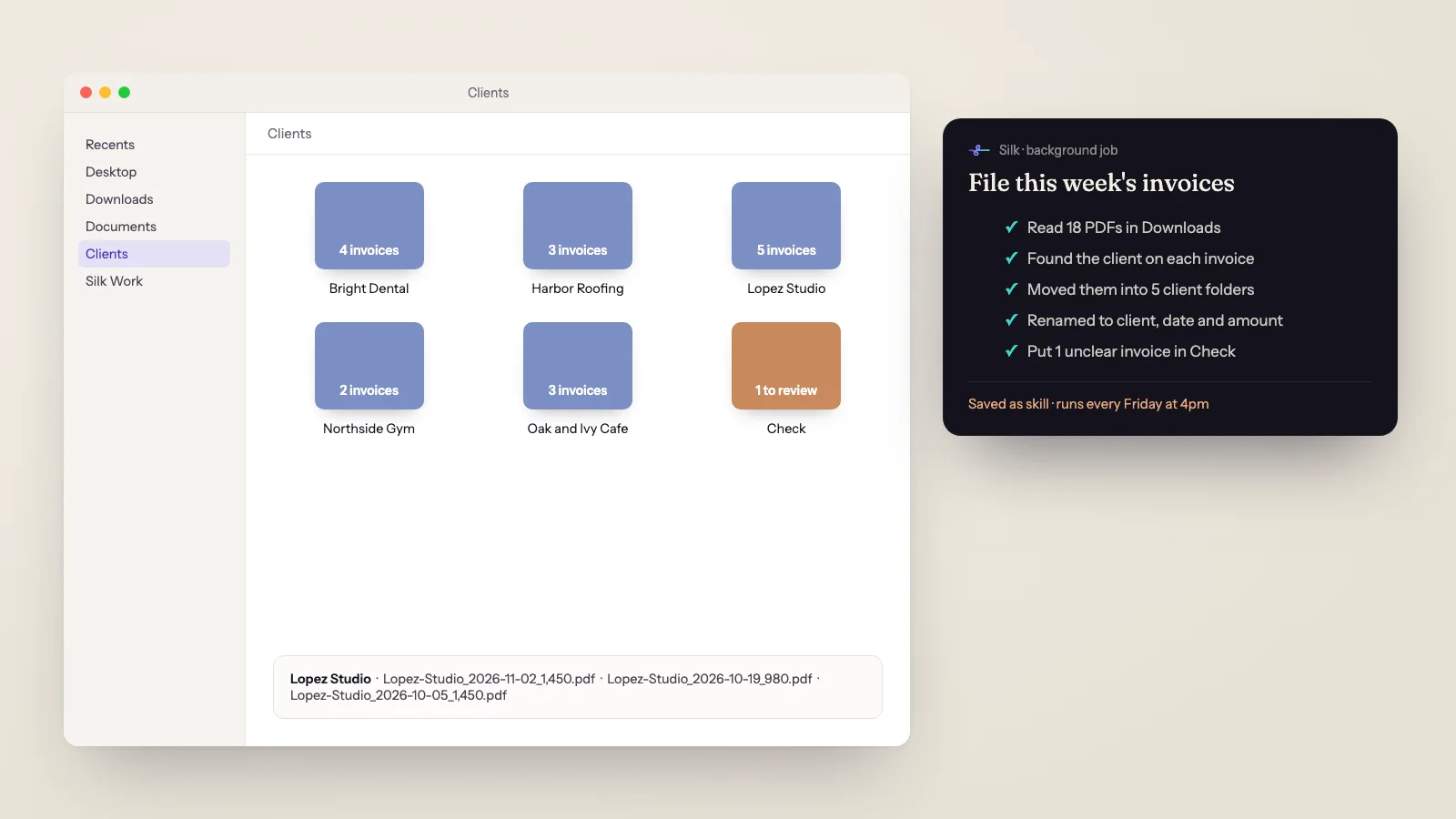
Most of the work that eats a solo business owner’s week isn’t hard. It’s the same ten minutes, over and over. Renaming the files from a client shoot. Moving invoices out of Downloads. Copying form answers into a spreadsheet. Pulling the same export every Friday.
The usual advice is “learn Shortcuts” or “write an AppleScript”. That works for some jobs. For a lot of them it doesn’t, because real tasks change a little every time.
This guide shows you which Mac automation tool fits which kind of task, and how to hand the messy ones to an AI agent in plain English, with no code at all.
First, pick the right kind of task
Before you automate anything, sort your repetitive jobs into two piles.
- Fixed jobs. The steps are identical every time. “Resize every image in this folder to 1200 pixels wide.” “Open Mail, Calendar and Notion at 9am.”
- Judgement jobs. The steps are similar, but each run needs a bit of reading or deciding. “Move each invoice into the right client folder.” “Find the enquiries in my inbox that nobody answered and put them in a sheet.”
Fixed jobs suit the classic Mac tools. Judgement jobs are where those tools get painful, and where an AI agent earns its keep.
The four ways to automate a Mac without code
| Tool | Best for | Where it struggles |
|---|---|---|
| Shortcuts (free, built in) | Fixed steps: resize images, convert files, open apps, simple menu-bar shortcuts | Anything that needs reading a file, or a website with no ready-made action |
| Automator (free, older) | Old file workflows you already have | Apple has moved its effort to Shortcuts, so new work belongs elsewhere |
| Macro and click recorders | Replaying the exact same clicks in one app | Breaks when a window moves, a button changes or a popup appears |
| An AI agent like Silk | Judgement jobs across several apps, files and websites | Overkill for a one-tap job Shortcuts already does well |
The pages that rank for this topic mostly compare the first three. They all share one limit: you have to spell out every step in advance. If step four is “work out which client this invoice is for”, none of them can do it.
How to automate a Mac task with an AI agent
Silk is a desktop AI agent for Mac and Windows. It lives in your menu bar, looks at your screen, and does the clicks, typing and file work itself, inside the apps and accounts you’re already logged in to. Here’s the whole process.
1. Describe the job the way you’d tell an assistant
Type it or say it out loud. Be specific about the result you want:
“Go through my Downloads folder. Move every PDF invoice into Clients, in a folder named after the client, and rename each one to client name, invoice date and amount. Put anything you’re unsure about in a folder called Check.”
That last line matters. A good request tells the agent what to do when it isn’t sure, so nothing gets filed in the wrong place.
2. Watch the first run
Silk shows a live card of what it’s doing, step by step. On the first run, keep an eye on it. If something isn’t right, say so in plain words: “use the date on the invoice, not the download date.”
If you’d rather watch it click, ask it to do the job in front of you. If you’d rather walk away, let it run in the background and leave a note when it’s finished. Several background jobs can run side by side.
3. Save it as a skill
When the run turns out right, click Save as skill. Silk turns that run into a reusable workflow that adapts when the details change. Next time, “file my invoices” is enough.
You can also turn on Teach mode, do the task by hand once, and let Silk watch and write the skill for you. Passwords are never recorded. Across Silk installs, 22 have recorded 233 skills so far, mostly for jobs exactly like this.
4. Put it on a schedule
Jobs you do every week shouldn’t need asking. Tell Silk: “Every Friday at 4pm, file this week’s invoices and send me a one-line summary.”
One honest limit: schedules run on your Mac, so they fire while the Mac is on and Silk is running. Turn on Start at login so they survive a restart. Silk keeps the Mac awake while a background job is running, but a Mac that’s switched off or already asleep runs nothing.
You can also send jobs from your phone over Telegram, and Silk does them on your Mac and sends the file back.
Ten Mac tasks worth handing over this week
- Sort Downloads into folders by type, client or month.
- Rename a batch of files from a shoot or a client, using what’s inside them, not just a number.
- Tidy the Desktop. Silk can even spot a desktop full of screenshots and offer to sort them into dated folders.
- Merge CSV exports into one categorised spreadsheet. One Silk user combined 5 CSV exports into 370 sorted transactions across 6 sheets, with unclear items flagged.
- Clean up Mail. Another removed 706 duplicate messages from a single Mac Mail folder.
- Pull a weekly export from a web app you’re logged in to and save it to the same folder every time.
- Turn form answers into a spreadsheet of who asked what, and when.
- Make a branded PDF from notes, like a report or a lead-magnet ebook.
- Start the day with a briefing of your calendar and the emails that need you, as a morning briefing.
- Post to social media on a schedule, with auto-posting.
Silk users ran 9,662 tasks in the last 60 days, and a typical finished task took under a minute. The big wins aren’t the one-minute jobs, though. They’re the twenty-minute ones you stop doing every week.
When to stick with Shortcuts
An AI agent isn’t always the answer. If a job is one tap, never changes and Shortcuts already has an action for it, use Shortcuts. It’s free, it’s instant and it doesn’t need an AI model at all.
A simple rule: if you could write the steps on a sticky note and they’d never change, use Shortcuts. If the steps start with “it depends”, hand it to an agent.
You can mix both. Silk can run alongside your existing shortcuts, and handle the parts that need reading or deciding.
Tips for reliable Mac automation
- Start with one job. Pick the most annoying ten-minute task from this week, not your whole business.
- Name the output. “Save it to Clients, named client and date” beats “organise these”.
- Ask for drafts first. For anything that goes out to other people, like emails or posts, let Silk prepare it and you send it until you trust it.
- Give it a “not sure” folder. It’s the cheapest safety net there is.
- Grant the permissions once. On a Mac, Silk asks for Microphone access for voice and Screen Recording so it can see what’s on screen. You can check them anytime from the shield icon in the Silk panel.
- You can always stop it. Press Escape, or Command and period, or just move the mouse yourself, and the job stops.
If you’re a member of the Smooth Operators community, Silk also has a Connected apps tab with more than 1,500 apps, such as Gmail, Google Sheets, Drive and Calendar, each connected with one sign-in. Everyone else can still use Silk in any app or website on their Mac, plus 43 ready-made app connections (here’s how they work).
What it costs
Shortcuts and Automator are free. Silk is 9 US dollars a month, the first day is free, and it covers up to three computers, Mac or Windows. It runs on the ChatGPT or Claude plan you already pay for, or any model through an OpenRouter key. See pricing for the details.
Where to go next
- New to Silk? Start with what Silk is and how it works.
- See a full scheduled job end to end: the AI morning briefing.
- Run your Mac from your phone: Telegram control.
- Ready to try it? See the plan, or head to the homepage.
Questions
- What is the easiest way to automate tasks on a Mac without coding?
- For a fixed, simple job like resizing images or opening a set of apps, Apple's Shortcuts app is free and already on your Mac. For jobs that change a little each time, or that need reading and judgement, like sorting invoices by client or tidying an inbox, an AI agent is easier, because you describe the job in plain English instead of building it step by step.
- Is Automator still worth using in 2026?
- Automator still ships with macOS and old workflows still run, but Apple's focus has moved to Shortcuts, which can import many Automator workflows. If you already have an Automator workflow that works, keep it. For anything new, start in Shortcuts or hand the job to an AI agent.
- What is the difference between a macro recorder and an AI agent?
- A macro recorder replays the exact clicks and keystrokes you recorded, often at fixed screen positions, so it breaks when a window moves or a button changes. An AI agent like Silk looks at the screen each time and works out where to click, so it copes when things look a little different. It can also read files and make decisions, which a recorder can't.
- Can an AI agent run a Mac task every day on its own?
- Yes, with one honest limit. In Silk you set a schedule in plain words, like "every weekday at 9am". Schedules run on your Mac, so they fire while the Mac is on and Silk is running. Turn on Start at login so they survive a restart.
- Is it safe to let AI control my Mac?
- Start with jobs you can check, and ask for drafts before anything gets sent. In Silk you can stop a job at any time by pressing Escape or Command and period, or just by moving the mouse yourself. macOS also asks you to grant Screen Recording permission before Silk can see your screen, and you can turn it off in System Settings.
- How much does it cost?
- Shortcuts and Automator are free. Silk is 9 US dollars a month with the first day free, and it runs on the ChatGPT or Claude plan you already have, or on any model through an OpenRouter key.