
How to automate tasks on Windows without coding
Task Scheduler, Power Automate, AutoHotkey or an AI agent? Which one fits each repetitive Windows job, and how to hand it over in plain English.
By Ijlal Ahmed · · Updated
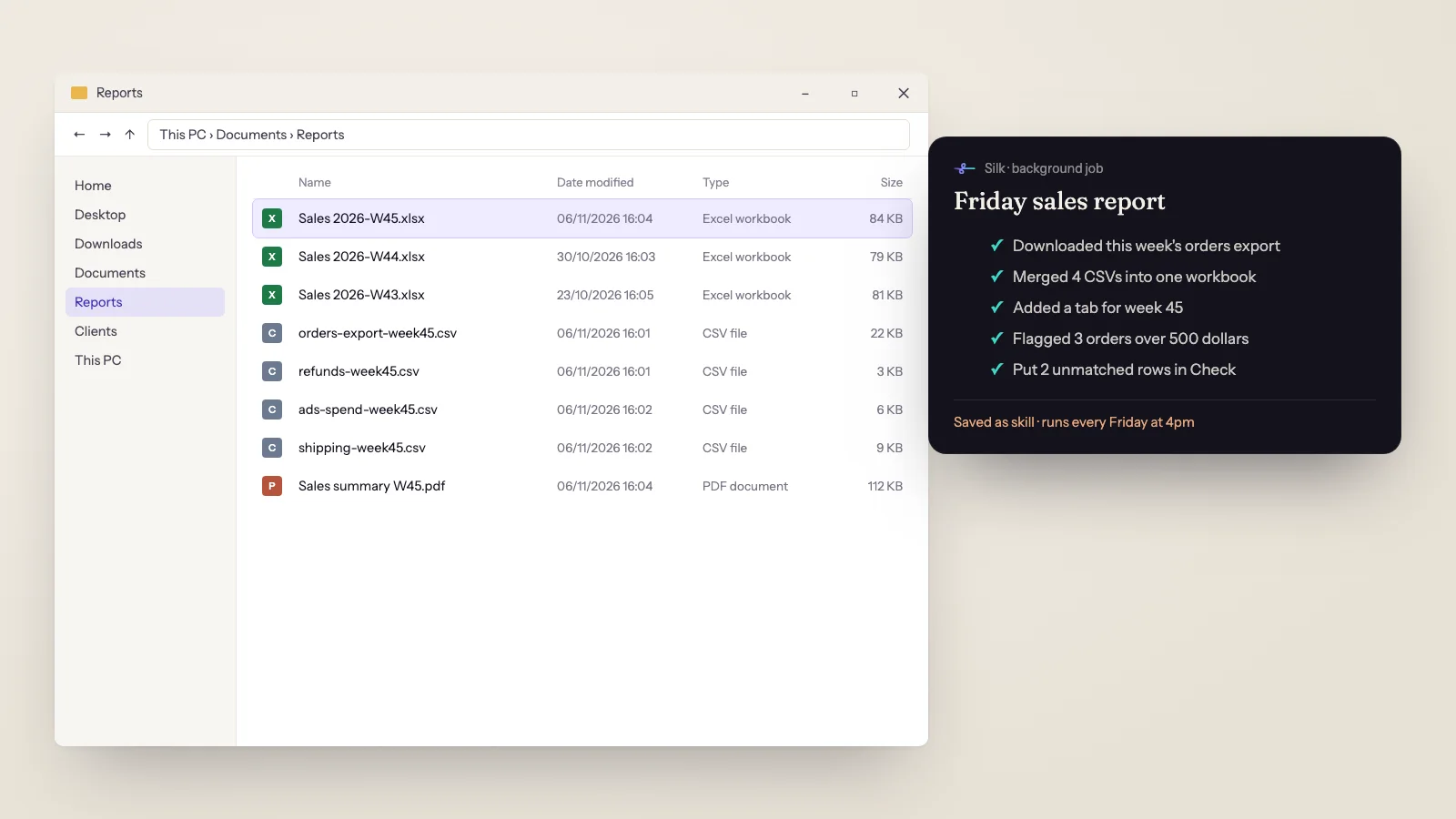
If you run a business from a Windows PC, a surprising chunk of your week is the same small job, done again. Downloading the Friday sales export. Renaming files from a client. Copying form answers into Excel. Moving invoices out of Downloads and into the right folder.
Search for help and you get two kinds of answer: “build a flow in Power Automate” or “write an AutoHotkey script”. Both work for some jobs. For a lot of real ones they don’t, because real tasks change a little every time.
This guide shows you which Windows automation tool fits which kind of task, and how to hand the messy ones to an AI agent in plain English, with no code and no flow chart.
First, sort your tasks into two piles
Before you automate anything, look at the jobs you repeat and split them.
- Fixed jobs. The steps are identical every time. “Open Outlook, Excel and Chrome at 8:30.” “Back up this folder every night.”
- Judgement jobs. The steps are similar, but each run needs some reading or deciding. “Put each invoice in the right client folder.” “Find the leads who filled in the form this week and add them to my sheet.”
Fixed jobs suit the classic Windows tools. Judgement jobs are where those tools get painful, and where an AI agent earns its keep.
The five ways to automate Windows without code
| Tool | Best for | Where it struggles |
|---|---|---|
| Task Scheduler (free, built in) | Starting a program or file at a set time | It only starts things. It can’t click, read or decide |
| Power Automate for desktop (comes with Windows) | Recorded, step-by-step flows inside apps you use daily | You still build and fix every step. Triggers and unattended runs need a paid Microsoft plan |
| AutoHotkey or AutoIt (free) | Keyboard shortcuts and text expansion | It’s scripting. “No code” stops the moment you need an if |
| Macro and click recorders | Replaying the exact same clicks | Breaks when a window moves, a button changes or a popup appears |
| An AI agent like Silk | Judgement jobs across apps, files and websites | Overkill for a one-click job a shortcut already handles |
The pages that rank for this topic compare the first four. They share one limit: you have to spell out every step in advance. If step three is “work out which client this invoice belongs to”, none of them can do it without you writing the logic.
How to automate a Windows task with an AI agent
Silk is a desktop AI agent for Windows and Mac. It sits in your system tray, looks at your screen, and does the clicks, typing and file work itself, inside the apps and websites you’re already signed in to. Here’s the whole process.
1. Describe the job like you’d brief an assistant
Press Ctrl+Space and say it, or type it into the panel. Be specific about the result:
“Every Friday, log in to my store dashboard, download this week’s orders export, merge it with the other CSVs in my Reports folder into one Excel workbook with a tab per week, and flag any order over 500 dollars. Save it as Sales and the week number.”
Tell it what to do when it isn’t sure, too. “Put anything you can’t match in a tab called Check” is a cheap safety net.
2. Watch the first run
Silk shows a live card of each step as it works. On the first run, keep an eye on it and correct it in plain words: “use the order date, not the payment date”. You can let it work in front of you, or let it run in the background while you do something else. Several background jobs can run side by side.
3. Save it as a skill
When the run comes out right, click Save as skill. Silk turns that run into a reusable workflow that adapts when the details change, so next week “do the Friday sales report” is enough.
You can also turn on Teach mode: do the task by hand once while Silk watches, and it writes the skill for you. Passwords are never recorded. Across Silk installs, 22 have recorded 233 skills so far.
4. Put it on a schedule
Say “every Friday at 4pm, do the sales report and send me a one-line summary”. That’s how most people do it: 91% of Silk schedules were set up by asking in plain words, not by filling in a form.
The honest limit: schedules run on your PC, so they fire while the PC is on and Silk is running. Turn on Start Silk at login so a restart doesn’t stop them. Silk keeps the PC awake while a background job runs, but a PC that’s off or already asleep runs nothing.
You can also send jobs from your phone through Telegram, and Silk does them on your PC and sends the file back.
Ten Windows tasks worth handing over this week
- Sort Downloads into folders by client, type or month.
- Rename a batch of files using what’s inside them, not just a number.
- Merge weekly CSV or Excel exports into one tidy workbook.
- Pull a report from a web app you’re logged in to and save it to the same folder every time.
- Turn form answers into a spreadsheet of who asked what, and when.
- Draft replies to the emails that need you, for you to check and send.
- Post to your social pages on a schedule, like the auto-posting use case.
- Build a client-ready PDF, such as a competitor report.
- Start the day with a briefing of your calendar and inbox, as a morning briefing.
- Update listings or pages in a web dashboard, one item at a time, while you do something else.
Rule of thumb: if the job is one click or one fixed time, use Task Scheduler or a shortcut. If the job needs someone to read and decide, hand it to an agent. You can mix both.
Tips for reliable Windows automation
- Start with one job. Pick this week’s most annoying ten-minute task, not your whole business.
- Name the output. “Save to Reports, named Sales and the week number” beats “organise this”.
- Ask for drafts first. For anything that goes to other people, let Silk prepare it and you send it until you trust it.
- Fix the hotkey if it beeps. On some Windows keyboards Ctrl+Space also switches input language. Change Silk’s voice hotkey in Settings to Alt+Space or Ctrl+Shift+Space.
- Find it in the tray. If the Silk icon is hidden behind the ^ arrow, press Ctrl+Shift+Space to open the panel from anywhere.
- You can always stop it. Press Escape or Ctrl and period, or just move the mouse yourself, and the job stops.
When you first install Silk, Windows SmartScreen may show a prompt because Silk is a newer publisher. The installer is signed. Click “More info”, then “Run anyway”.
If you’re a member of the Smooth Operators community, Silk also has a Connected apps tab with more than 1,500 apps, like Gmail, Google Sheets and Calendar, each connected with one sign-in. Everyone else can still use Silk in any app or website on their PC, plus 43 ready-made app connections (here’s how those work).
What it costs
Task Scheduler is free, and Power Automate for desktop comes with Windows. Silk is 9 US dollars a month, the first day is free, and one plan covers up to three computers, Windows or Mac. It runs on the ChatGPT or Claude plan you already pay for, or any model through an OpenRouter key. See pricing for the details.
Where to go next
- On a Mac too? Read how to automate repetitive tasks on a Mac.
- New to Silk? Start with what Silk is and how it works.
- Ready to try it? See the plan, or head to the homepage.
Questions
- What is the easiest way to automate tasks on Windows without coding?
- For a fixed job, like opening a program at a set time, Windows Task Scheduler is free and already on your PC. For click-by-click jobs inside one app, Power Automate for desktop lets you record and replay steps. For jobs that change a little each time, or that need reading and judgement, like sorting invoices by client or pulling numbers from a web app into Excel, an AI agent is easier, because you describe the job in plain English instead of building a flow.
- Is Power Automate for desktop free?
- Microsoft includes Power Automate for desktop with Windows 10 and 11 at no extra cost, and you can build and run flows by hand. Running flows automatically from triggers, unattended runs and the cloud features sit in Microsoft's paid plans, so check their pricing page for your situation before you build a lot of flows.
- What is a good Power Automate alternative for a one-person business?
- If your jobs live in a few web apps and your files, an AI agent like Silk is often simpler, because there is no flow to build or maintain. You describe the result, watch the first run, then save it as a skill and put it on a schedule. If you need company-wide approval flows across Microsoft 365, Power Automate is still the better fit.
- Can an AI agent run a Windows task every day on its own?
- Yes, with one honest limit. In Silk you set a schedule in plain words, like "every weekday at 9am". Schedules run on your PC, so they fire while the PC is on and Silk is running. Turn on Start Silk at login so they survive a restart.
- Is it safe to let AI control my Windows PC?
- Start with jobs you can check, and ask for drafts before anything gets sent. In Silk you can stop a job at any time by pressing Escape or Ctrl and period, by moving the mouse yourself, or by parking the cursor in the top-left corner of the screen.
- How much does it cost?
- Task Scheduler is free and Power Automate for desktop comes with Windows. Silk is 9 US dollars a month with the first day free, covers up to three computers on Windows or Mac, and runs on the ChatGPT or Claude plan you already have, or on any model through an OpenRouter key.